Rufus
Tool that writes Windows and Linux ISO files to USB drives, with UEFI and BIOS options for installing Windows on corporate PCs.
What it does
- Writes a Windows ISO to a USB drive with GPT and UEFI or MBR and BIOS settings
- Chooses FAT32 or NTFS, including NTFS with UEFI boot for large install.wim files
- Verifies the written data and reports errors during the write
- Offers Windows setup options for offline and local-account builds
Rufus is a small, portable tool for making bootable USB drives. It is the fastest way for a Windows administrator to build an installer for a new PC or a repair stick for a machine that will not boot.
Who it is for
Rufus suits an administrator who builds or repairs a few PCs at a time, and who wants one fixed image on one drive. If you need several images on one stick, Ventoy is the better fit. The comparison guide explains the difference.
Install and first run
Rufus does not need installing. Download the file from the official site, and check the publisher and version in its properties before you run it.
- Insert the USB drive. Confirm its letter and size.
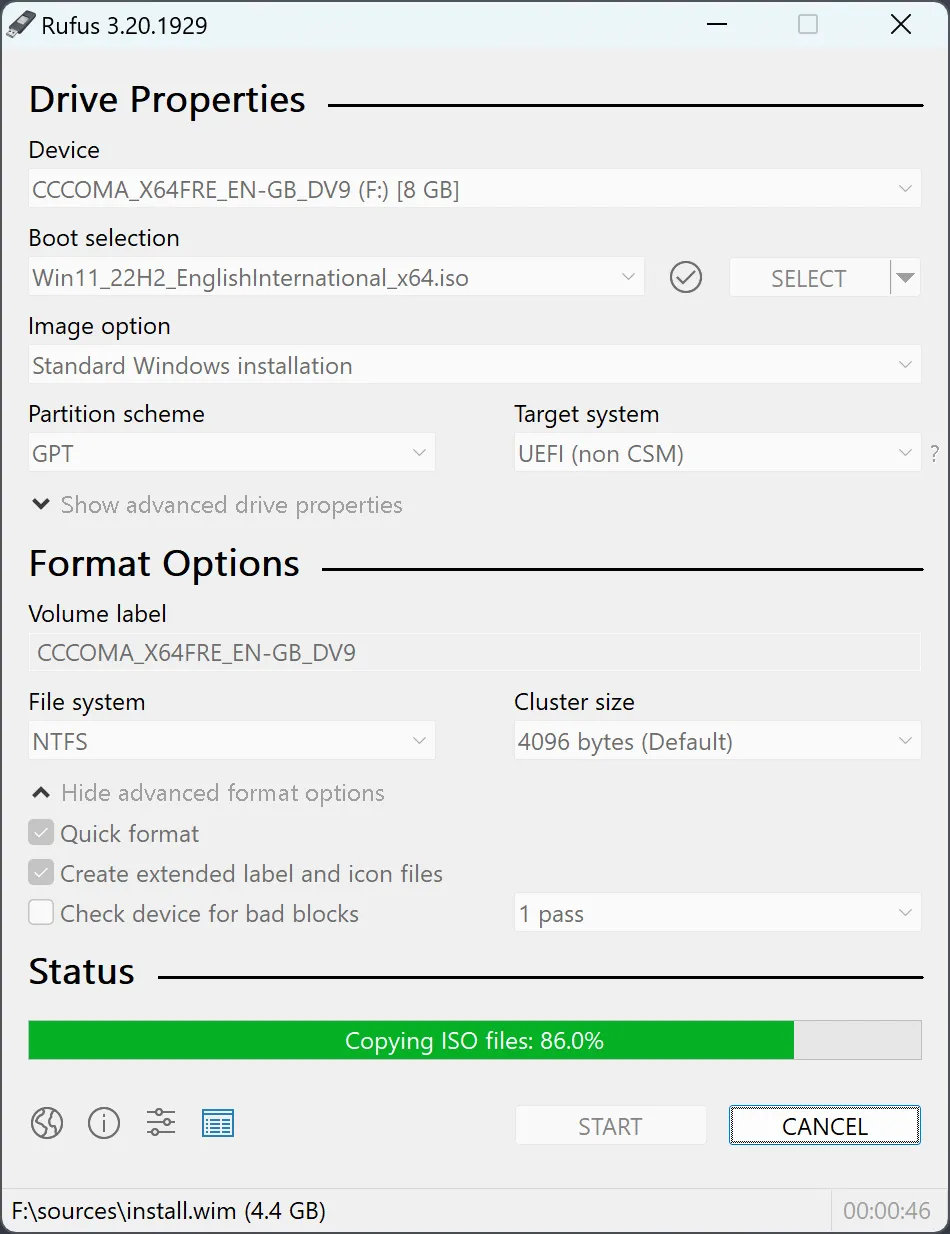
- Start Rufus as administrator and select the drive under Device.
- Click SELECT and choose the Windows ISO you downloaded from Microsoft.
- Set the partition scheme and target system for the PCs you will install.
- Leave Quick format on, click START, and accept the warning that the drive will be erased.
The full procedure, with checks after the write, is in the Windows 11 installer guide.
Settings that matter
- Partition scheme and target system: GPT with UEFI for current hardware. A mismatch is the most common reason a stick does not appear in the boot menu.
- File system: FAT32 is the most compatible. When
install.wimis larger than 4 GB, choose NTFS. Rufus adds the boot files needed for UEFI to start from NTFS. - Windows user experience: these options change the first-run setup. Use them only on builds you control and document.
Common tasks
Questions and answers
Is Rufus safe to use on a corporate PC?
Download it only from the official site, check the file's signature or published hash, and run it as an administrator only on a PC you are allowed to change. It does not install anything on the system.
Why does Rufus erase my USB drive?
Writing a bootable image replaces the drive's partition table and files. Copy anything you need off the drive first, and check the device letter and size before you click Start.
Which partition scheme should I choose?
Use GPT with UEFI (non CSM) for current PCs. Use MBR with BIOS only for older hardware that cannot boot UEFI.
Can Rufus make a USB for Linux as well?
Yes. Rufus writes many Linux ISO images, and the same partition and boot settings apply.
Guides that use Rufus
- Build an Admin Toolbox USB: Ventoy and Rufus TogetherHow to plan a field toolbox USB that combines Windows installers from Rufus with a Ventoy menu of rescue and diagnostic tools.
- Fix 'No Bootable Device' on a USB InstallerTroubleshoot a Windows USB installer that does not appear in the boot menu, covering UEFI and BIOS mismatches, partition schemes and bad sticks.
- Rufus or Ventoy: Which USB Tool Should an Admin Use?A practical comparison of Rufus and Ventoy for Windows administrators: when a single-ISO stick is better, when a multi-ISO stick saves time, and how to choose.
- Secure Boot and USB Media: What Breaks and How to Fix ItWhy a Rufus or Ventoy stick may be refused when Secure Boot is on, and how to test, fix or work around the problem safely on corporate PCs.
- Create a Windows 11 Installer USB with RufusStep-by-step: build a bootable Windows 11 USB drive with Rufus for UEFI PCs, with the right partition scheme, file system and verification steps.